Table Content
- What Is an AI Business Assistant?
- AI assistant vs. traditional virtual assistant
- The Techecom AI Assistant Adoption Path
- Level 1 — Use · Level 2 — Configure
- Level 3 — Workflow
- Level 4 — Connect
- Level 5 — Automate
- Use Cases
- Choosing Your Approach
- When It’s the Wrong Solution
- Measuring ROI
- FAQ
Most business owners don’t need a custom-built AI system. They need to know how to use AI as a business assistant with the tools they already have open in another browser tab.
That’s a different problem than the one most guides solve. Search for help on this topic and you’ll mostly find two kinds of content: tutorials on building a custom AI agent from scratch, and roundups ranking the “best” AI assistant tools. Neither one answers the question a busy owner or manager actually has, which is simpler: I already have access to ChatGPT, Claude, Gemini, or Copilot — how do I get real, repeatable value out of it without hiring a developer?
You don’t need to build an AI agent to start. You need a plan for getting more out of the AI you can already open right now, and a way to know when — if ever — it makes sense to go further.
That’s what this guide covers. We call it the Techecom AI Assistant Adoption Path, and it moves through five stages: Use, Configure, Workflow, Connect, and Automate. Each stage builds on the one before it, and each one solves a specific limitation of the stage before. You’ll start by using a general-purpose AI tool for simple tasks, then teach it about your business, then turn one-off requests into repeatable processes, then connect it to the tools you already run your business on, and finally — only where it genuinely earns its place — automate parts of the work.
Reaching the fifth stage isn’t the goal. Most businesses get significant value by stopping at stage two or three. The goal is finding the right amount of AI assistance for your business, not the most advanced setup possible.
Along the way, we’ll also cover where this approach doesn’t apply — because there are real situations where an AI assistant is the wrong tool for the job, and a good guide should tell you that as clearly as it tells you what to do.
What Is an AI Business Assistant?
An AI business assistant is a general-purpose or specialized AI tool used to complete real work for a business — drafting, researching, summarizing, analyzing, organizing, and eventually acting on information — rather than simply answering questions.
That’s a practical definition, not a technical one. In practice, “AI business assistant” doesn’t refer to one specific product. It’s a role that a tool plays. The same underlying AI model — say, Claude or ChatGPT — can be a casual writing helper for one person and a fully configured business assistant for another, depending entirely on how much context, structure, and workflow has been built around it. The tool doesn’t change. The setup does.
That distinction matters, because it means becoming “an AI business assistant user” isn’t about picking the right product. It’s about how far along the Adoption Path you’ve gone with whatever tool you’ve chosen.
AI assistant vs. traditional virtual assistant
A traditional virtual assistant — whether that’s a human VA or older rule-based scheduling and support software — works from fixed instructions or scripts. It’s reliable within a narrow scope, but it doesn’t reason through a new situation it wasn’t explicitly set up to handle.
An AI business assistant works differently. Instead of following a script, it interprets instructions written in plain language and generates a response suited to the specific situation in front of it. That’s why the same AI tool can draft a client email, summarize a 40-page contract, and help plan a marketing calendar in the same afternoon — a traditional rules-based tool would need separate configurations, or separate software, for each of those.
The tradeoff is worth naming honestly: rule-based tools are predictable in a way AI often isn’t. An AI assistant can produce a confident-sounding answer that’s wrong, especially on anything requiring current facts, exact numbers, or specialized legal or technical accuracy. That’s a theme we’ll come back to throughout this guide, because it shapes almost every recommendation in the Adoption Path.
What an AI business assistant can actually do {#what-an-ai-business-assistant-can-do}
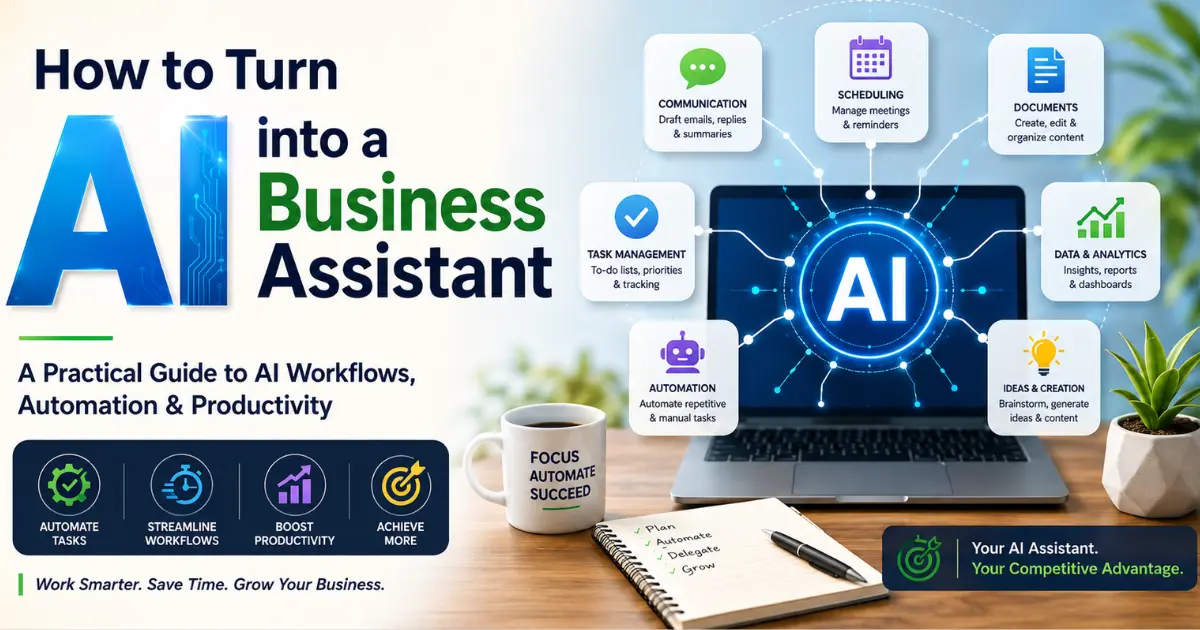
Used well, an AI business assistant can reasonably help with:
- Drafting first versions of emails, proposals, job descriptions, and internal documents
- Summarizing long documents, meeting transcripts, or customer feedback
- Researching a topic, competitor, or market segment as a starting point for further verification
- Reorganizing and cleaning up messy notes, data, or unstructured information
- Brainstorming options for a campaign, a product decision, or a difficult message
- Answering routine internal questions once it has the right business context
It’s worth being equally clear about what it doesn’t reliably do on its own: make final judgment calls on anything with legal, financial, or safety consequences; guarantee factual accuracy on anything time-sensitive; or replace a domain expert’s sign-off on specialized work. We’ll return to these limits in more detail later in this guide, in When an AI Business Assistant Is the Wrong Solution.
AI assistant vs. chatbot {#ai-assistant-vs-chatbot}
The terms get used interchangeably, but they describe different jobs. A chatbot, in the traditional sense, is usually built to answer a defined set of questions — often customer-facing, often scoped to one narrow purpose like support tickets or FAQ lookup.
An AI business assistant is broader by design. It’s not limited to one predefined set of questions; it can move between tasks — draft this, then summarize that, then help plan the other thing — within a single ongoing conversation or workspace. A chatbot answers. An assistant works alongside you across a range of tasks.
AI assistant vs. AI agent {#ai-assistant-vs-ai-agent}
One more distinction is worth making early, because it comes up again later in this guide. An AI assistant primarily responds to what you ask it to do — you’re still driving each step. An AI agent goes further: it can take multiple actions on its own toward a goal, often without a person approving each individual step along the way.
That’s the short version. We’ll revisit this distinction later, once it actually becomes relevant to a decision you’re making — specifically, once your assistant is connected to other business tools and the question of autonomy stops being theoretical. For now, the practical takeaway is simpler: everything in the early part of this guide assumes an assistant, not an agent. That’s a deliberate choice, not a limitation.
The Techecom AI Assistant Adoption Path {#techecom-ai-assistant-adoption-path}
Most advice about using AI in a business jumps straight to one of two extremes: “just start typing into ChatGPT” on one end, or “build a custom AI agent with an API and a database” on the other. Neither extreme is wrong, exactly — they’re just two different points on a much longer road, and most businesses land somewhere in between.
The Techecom AI Assistant Adoption Path breaks that road into five stages: Use, Configure, Workflow, Connect, and Automate. Each stage solves a specific limitation left over from the one before it, and each stage is genuinely useful to stop at — you don’t need to reach the end to get real value.
Here’s the shape of the whole path before we walk through each stage in depth:
| Level | What Changes | Example | Complexity | Human Oversight |
|---|---|---|---|---|
| 1. Use | You start using a general-purpose AI tool for real tasks, as-is, with no setup. | Asking ChatGPT to draft a follow-up email to a client. | Low | High — review everything before it goes out. |
| 2. Configure | You give the AI lasting context about your business, so it stops acting like a stranger every time. | Setting up custom instructions so the AI knows your brand voice, audience, and role before you ask it anything. | Low–Medium | High — you’re shaping behavior, not just checking output. |
| 3. Workflow | You turn a task you do often into a repeatable, documented process instead of a one-off request. | A standing process for turning a rough meeting transcript into a client-ready summary every week. | Medium | Medium — spot-check the process, not every single output. |
| 4. Connect | The AI can read from or act on the actual tools your business runs on, not just conversation text. | The assistant pulls real numbers from a spreadsheet or drafts replies inside your inbox. | Medium–High | Medium — permissions and access become part of the design. |
| 5. Automate | Selected steps run with little or no manual intervention, sometimes with the AI taking multiple actions in sequence. | A multi-step process that drafts, checks, and files a weekly report without a person starting each step. | High | Lower for routine steps, but monitoring and escalation still matter. |
A few things to notice in that table before you go further. Complexity rises steadily, but so does the setup effort required — you don’t fall into Level 4 by accident. And human oversight doesn’t disappear as you move down the path; it changes shape, from reviewing every output at Level 1 to designing permissions and monitoring at Level 4 and 5.
There’s also no rule that says you have to move through these in a straight line, or move through all five at all. A solo consultant might get everything they need from Level 2. A ten-person agency might build several Level 3 workflows and never touch Level 4. A company with sensitive client data might deliberately stop before Level 4 for reasons we’ll cover later in this guide. The path describes what’s possible, not what’s required.
With that overview in place, let’s walk through each level — starting with the one every business can begin today, with the tools already sitting open on their computer.
Level 1 — Use AI Directly as Your Business Assistant {#level-1-use-ai-directly}
This is the level almost every business is already standing at, whether they realize it or not. If anyone on your team has ever asked ChatGPT to draft an email or asked Claude to summarize a document, you’re already here. Level 1 isn’t about acquiring new technology — it’s about using what you already have on purpose, instead of occasionally and by accident.
Choose a general-purpose AI tool {#level-1-choose-a-tool}
For most businesses, the starting point is a general-purpose AI assistant — tools like ChatGPT, Claude, Gemini, or Microsoft Copilot. Any of these can serve as a capable starting assistant, and the differences between them matter less at this stage than actually using one consistently.
Rather than compare features or pricing here — which changes often enough that a quick web search will serve you better than a paragraph in this guide — we’ve written dedicated guides on getting the most out of each one: [using Claude as a business assistant], [using ChatGPT as a business assistant], [using Gemini as a business assistant], and [using Microsoft Copilot as a business assistant]. If you already have access to one through work (Copilot is often bundled into Microsoft 365, for example), start there before evaluating anything new.
Start with repetitive, low-risk tasks {#level-1-low-risk-tasks}
The fastest way to build confidence with an AI assistant is to hand it work that’s repetitive, time-consuming, and low-risk if it needs a second pass. That combination matters — you want tasks where a mediocre first draft still saves you time, and where a mistake doesn’t cost much to catch.
Good starting points include:
- Drafting — first versions of emails, job posts, proposals, or internal announcements
- Summarizing — long documents, articles, or meeting notes into a short digest
- Research assistance — pulling together a starting overview of a topic, competitor, or market before you dig in yourself
- Brainstorming — generating options for a campaign name, a difficult message, or a product decision
- Meeting preparation — turning a rough agenda into talking points, or a transcript into a summary
- Document analysis — pulling key points or inconsistencies out of a contract, report, or spreadsheet export
- Data interpretation — asking what a set of numbers might suggest, as a starting hypothesis rather than a final answer
- Internal communication — drafting a policy update, an FAQ for staff, or a project status note
None of these require any setup beyond opening the tool and asking. That’s the point of Level 1 — it’s the lowest-effort way to find out where AI is actually useful for your specific business, before you invest time configuring anything.
Give AI clear instructions {#level-1-clear-instructions}
The quality of what you get back is tied directly to the quality of what you ask for. A simple structure helps even at this early stage: Role → Task → Context → Constraints → Output.
In practice, that might look like: “You’re helping me write client emails for a small landscaping business [Role]. Draft a follow-up to a customer who hasn’t responded to a quote in two weeks [Task]. They received a quote for a fall cleanup on October 3rd [Context]. Keep it under 100 words and don’t sound pushy [Constraints]. Write it as a ready-to-send email [Output].”
That’s a basic version of instruction-writing — enough to notice a real jump in output quality. We go deeper on building reusable, business-specific instructions in Level 2 and in our dedicated guide to [AI prompting for business], once you’re ready to move past one-off requests.
Keep humans in the loop {#level-1-human-in-the-loop}
Even at this simple stage, review matters — arguably more here than anywhere else in the Adoption Path, because nothing has been configured or double-checked yet. Treat AI output the way you’d treat a draft from a new hire who’s still learning your business: often useful, sometimes very good, but not yet something you’d send out unread.
That’s especially true for anything involving:
- Decisions with real consequences
- External or customer-facing communication
- Financial figures or commitments
- Sensitive information about people or the business
- Anything you’d be uncomfortable being wrong about in public
You’ve found useful tasks at this point, but the AI still doesn’t know anything specific about your business — it’s giving generically competent answers, not informed ones. That’s the limitation Level 2 exists to solve.
Level 2 — Configure AI Around Your Business {#level-2-configure-ai}
At Level 1, you’re talking to a generically competent assistant that forgets everything about your business the moment the conversation ends. Level 2 is where that changes. Configuration is the difference between an AI tool that answers well and one that answers well for your business specifically — same underlying tool, meaningfully different output.
Most of what follows takes 20–30 minutes to set up once, and keeps paying off on every task afterward.
Give the assistant business context {#level-2-business-context}
Start by writing down, in plain language, what your business does, who it serves, and how you talk about it. Most AI tools now offer a place to store this — custom instructions, a “project” or workspace with persistent notes, or a saved system prompt. A few sentences is often enough: what you sell, who buys it, what tone you use, and anything a new employee would need to know in their first week.
Without this step, every request starts from zero. With it, the same “draft a follow-up email” request from Level 1 already knows your industry, your audience, and your voice before you’ve typed a word of the specific request.
Define roles and responsibilities {#level-2-roles-and-responsibilities}
Tell the assistant what role it’s playing before you ask it to do the work. “You’re my marketing assistant” produces different output than “you’re my operations assistant,” even for a similar-sounding task, because the framing changes what the AI treats as relevant.
If different people on your team use the same AI tool for different purposes, it’s worth defining separate roles or separate saved setups for each — a sales-focused configuration and a customer-support-focused configuration will naturally diverge in useful ways.
Create reusable instructions {#level-2-reusable-instructions}
Once you’ve written a request that worked well, save it. Most AI tools let you store custom instructions, saved prompts, or reusable templates. Instead of re-explaining your business every time, you write it once and reuse it — which is also what turns Level 2 into the foundation for Level 3’s repeatable workflows.
A simple habit: whenever a response is genuinely good, ask yourself what you’d need to save to get that same quality next time without re-typing all the context. Save that.
Provide reference documents and knowledge {#level-2-reference-documents}
Beyond a short description of your business, most AI tools can now accept longer reference material — style guides, product documentation, past examples of your best work, pricing sheets, or FAQs. Uploading or linking this material lets the assistant answer with your actual details instead of generic assumptions.
Be selective here. Feeding in your entire shared drive tends to produce worse results than feeding in a handful of genuinely representative documents — the assistant works better with a curated set of “here’s what good looks like” material than with everything you own.
Establish output standards {#level-2-output-standards}
Decide what “done” looks like before you ask for it, and say so. Length, tone, format, and structure preferences all belong in your saved instructions. “Keep responses under 150 words,” “always format as bullet points for internal notes,” or “never use exclamation points in client emails” are the kind of small rules that, once set once, remove a surprising amount of repeated editing.
Set boundaries and guardrails {#level-2-guardrails}
Configuration also means telling the assistant what not to do. Useful boundaries include: never state pricing without confirmation, never send anything externally without review, never make claims about results or guarantees, and flag anything it’s uncertain about rather than guessing confidently.
This step matters more than it might seem. An assistant that’s been told to flag uncertainty is meaningfully safer to work with than one that hasn’t — not because the underlying tool changed, but because you’ve asked it to behave differently.
Build reusable business prompts {#level-2-reusable-prompts}
Configuration and prompting overlap here, and that’s intentional — a well-configured assistant needs fewer, simpler prompts to get good results, because the context is already in place. Building a small library of reusable prompts for your most common tasks (a weekly report request, a standard email template, a recurring research format) is the natural next step once your business context and guardrails are set.
This is also where it’s worth going deeper than this guide covers. If prompting well for your specific business is something you want to get genuinely good at, our dedicated guide on [AI prompting for business] covers structure, technique, and examples in more depth than fits here.
At this point, the assistant understands your business and follows your standards — but you’re still doing the same configured task manually, one request at a time, every time it comes up. That repetition is exactly what Level 3 is built to remove.
Level 3 — Turn AI Tasks Into Repeatable Business Workflows {#level-3-repeatable-workflows}
Somewhere around Level 2, a pattern usually shows up: you’re running the same configured request through your AI assistant every week, or every time a certain event happens — a new lead comes in, a meeting wraps up, a report is due. Level 3 is about turning that repetition into an actual workflow instead of a habit you happen to remember to do.
The underlying shape of a good AI workflow is simple: Input → AI processing → Human review → Output → Measurement. Something goes in, the AI does defined work on it, a person checks it, something usable comes out, and over time you track whether it’s actually helping.
What makes a good AI workflow? {#level-3-what-makes-a-good-workflow}
Not every task deserves a formal workflow. The best candidates share three traits: they happen often enough to be worth documenting, the steps are similar each time even if the details change, and a person can review the output quickly rather than needing to redo the work from scratch.
A one-off task — writing a single unusual proposal, say — doesn’t need a workflow. A weekly task with the same basic shape every time — turning meeting notes into a client recap, or condensing customer feedback into a summary — almost always does.
Identify tasks worth turning into workflows {#level-3-identify-tasks}
Look back at what you’ve been asking your Level 2 assistant to do. Anything you’ve typed a similar version of more than two or three times is a candidate. Common early workflow candidates include:
- Turning meeting notes or transcripts into structured summaries
- Converting customer feedback or reviews into a recurring themes report
- Drafting a weekly or monthly status update from raw data
- Producing first-draft social posts or newsletter content on a schedule
- Triaging and drafting responses to common categories of customer inquiry
Build your first AI workflow step by step {#level-3-build-your-first-workflow}
Start with one workflow, not five. A simple approach:
- Pick one recurring task you already do by hand.
- Write down the steps you currently follow, in order, the way you’d explain it to a new employee.
- Turn each step into a specific AI instruction, using the reusable prompts and context you built in Level 2.
- Run it once manually, checking the output at each stage rather than only at the end.
- Adjust the instructions based on what went wrong or what needed editing.
- Repeat it the next time the task comes up, refining as you go.
This is deliberately manual at first — you’re still running each step yourself, just with a documented, repeatable process instead of reinventing the request every time.
Add human review checkpoints {#level-3-human-review-checkpoints}
Decide in advance where a person needs to check the work before it moves forward, rather than deciding case by case in the moment. For most first workflows, that means reviewing the final output before it goes anywhere external, and spot-checking a sample of outputs periodically even after the workflow has proven reliable.
Where the checkpoint sits should match the stakes. A workflow that drafts internal notes for your own use can be reviewed lightly. One that drafts anything customer-facing deserves a firmer checkpoint, every time, at least until you’ve built real confidence in it.
Document the workflow as an SOP {#level-3-document-as-sop}
Once a workflow is working, write it down as a short standard operating procedure — what triggers it, what the steps are, what the AI instructions are, and where the review checkpoint sits. This does two things: it means the workflow survives you being unavailable, and it turns something that lived in your head into something you can hand to someone else on your team.
A workflow that only works because you personally remember all the steps isn’t really a workflow yet. It’s a habit.
Examples of practical AI business workflows {#level-3-workflow-examples}
A few realistic patterns, across different parts of a business:
- Marketing: Turning a rough content calendar into first-draft social posts each week, reviewed before publishing.
- Sales: Summarizing a batch of new lead information into a consistent format before a salesperson’s first outreach.
- Customer support: Drafting responses to common inquiry categories for an agent to review and personalize, rather than writing from scratch.
- Research: Producing a standing weekly summary of relevant industry news or competitor updates.
- Administration: Converting expense notes or receipts into a structured summary for bookkeeping review.
- Reporting: Turning raw weekly numbers into a written summary highlighting notable changes.
- Content operations: Repurposing one long-form piece into shorter formats for different channels.
These are patterns to adapt, not templates to copy exactly — the right workflow depends on what’s actually repetitive in your business. If building out workflows like these becomes a bigger part of how your business runs, our dedicated guide to [AI automation and workflows for business] goes further into implementation, tooling, and more advanced workflow design than fits in this overview.
At this point, your workflows are genuinely repeatable — but someone still has to manually move information in and out of the AI tool and into the systems where the work actually lives, like your CRM, your inbox, or your project tracker. Removing that manual handoff is what Level 4 is about.
Level 4 — Connect AI to Your Business Tools {#level-4-connect-ai}
Every level so far has happened inside a conversation window — you type something, the AI responds, you copy the result somewhere else. Level 4 is where that changes. Instead of just talking about your business, the assistant starts working directly with the tools your business actually runs on.
Why connected tools change what AI can do {#level-4-why-connections-matter}
Up to this point, your assistant only knows what you’ve told it or pasted in. Once it’s connected to real systems, it can work with information that’s current, not just information you happened to copy over — checking today’s calendar instead of a description of your schedule, or pulling this quarter’s actual numbers instead of a summary you typed up by hand.
This is a meaningful jump, and it’s also where the stakes start to rise. A mistake in a conversation is easy to catch and ignore. A mistake made while touching a live system — sending the wrong file, updating the wrong record — is not. That’s worth keeping in mind through the rest of this section.
Common business tools AI can work with {#level-4-common-tools}
Depending on the AI tool you’re using and what it supports, connections commonly extend to:
- Email — reading, drafting, and organizing messages
- Calendar — checking availability, scheduling, summarizing upcoming meetings
- Documents — reading from and writing to shared files
- Spreadsheets — pulling data for analysis or updating records
- CRM systems — logging notes, pulling customer history, updating deal stages
- Project management tools — creating or updating tasks and tracking status
- Knowledge bases — searching internal documentation for accurate answers
Which of these are available depends on your specific AI tool and plan — this is intentionally a category overview rather than a feature list, since the details change too often to document reliably here, and vary by provider.
APIs, integrations, and no-code connections {#level-4-apis-and-integrations}
There are generally two ways these connections get built. Some AI tools offer built-in, native connections to popular business software that you can turn on directly in settings, with no technical setup required. Others require a no-code integration platform that sits in between, linking your AI tool to your other software without anyone writing code.
You don’t need to understand the technical difference between these approaches to benefit from them. What matters is knowing that “connect AI to my CRM” is very often achievable without a developer, even if it takes some initial setup time to get right.
Permissions and data access {#level-4-permissions-and-data-access}
A useful rule of thumb once you’re connecting AI to real systems: give it access to what a task actually requires, not everything it could theoretically use. If a workflow only needs to read your calendar, don’t also give it permission to send emails on your behalf. If it only needs to see one folder of documents, don’t connect your entire shared drive.
This isn’t just caution for its own sake — narrower access also means smaller consequences if something goes wrong, and it’s easier to explain what your assistant can and can’t do when the permissions actually match the job.
Security considerations when connecting AI to business systems {#level-4-security-considerations}
Before connecting AI to anything containing real business or customer data, it’s worth thinking through a few practical questions: What happens to the data once it’s shared with the AI tool? What does the provider’s policy say about how it’s stored, used, or retained? Who on your team has the ability to approve or revoke these connections? And does anything you’re about to connect fall under a specific compliance requirement your business already follows?
We can’t give a universal answer to any of these — the right answer depends on your provider, your industry, and your specific obligations. What we can say clearly: read the actual data policy of whatever tool you’re connecting, rather than assuming, and involve whoever handles compliance or IT decisions at your business before connecting anything sensitive.
When connected workflows become AI agents {#level-4-when-workflows-become-agents}
Earlier in this guide, we drew a basic distinction: an assistant responds to what you ask, while an agent can take multiple actions on its own toward a goal. This is the point in the Adoption Path where that distinction stops being abstract.
Once your assistant can actually read from and write to your business tools, the natural next question is how much it should be allowed to do without you approving each individual step. A workflow where the AI drafts a reply and waits for you to hit send is still assistant-level behavior — you’re the one taking action. A workflow where it drafts the reply, decides it’s good enough, and sends it — then logs the interaction in your CRM and schedules a follow-up, all without a person in between — has crossed into agent territory.
Neither is automatically right or wrong. It depends on the task, the stakes, and how much you trust the workflow after watching it run reliably over time. What matters here is recognizing the shift is happening, since it changes what you need to monitor and how much oversight the workflow actually needs. Our dedicated guide on [AI agents vs. AI assistants for business] goes deeper into this distinction — the different types of agent behavior, how autonomy is typically structured, and how to decide when it’s actually justified for a given task.
Your assistant can now reach the systems it needs to do real work. The question left is no longer can it act — it’s should it, and for which specific tasks. That’s what Level 5 is about.
Level 5 — Automate and Agentize the Right Tasks {#level-5-automate-the-right-tasks}
This is the most advanced level in the Adoption Path, and also the one most likely to be oversold elsewhere. Automation is genuinely powerful for the right tasks — and genuinely risky for the wrong ones. The goal of this section isn’t to talk you into full automation. It’s to help you tell the difference.
One point worth restating clearly before going further: nothing about reaching Level 4 obligates you to keep going. Plenty of businesses get everything they need by connecting AI to their tools and still reviewing every output personally. Level 5 is for tasks that have earned a higher degree of trust, not a default destination.
What should you automate? {#level-5-what-to-automate}
Good automation candidates tend to share a few traits: the task is genuinely repetitive, the steps are well understood because you’ve run the workflow manually many times already, the cost of an occasional mistake is low, and there’s a clear way to catch errors if something does go wrong.
A recurring internal report that’s been running reliably as a Level 3 or 4 workflow for months is a reasonable candidate. A brand-new process you tried twice is not — not yet.
What should remain human-controlled? {#level-5-what-stays-human-controlled}
The reverse traits point to tasks that should stay manual, or at least stay reviewed: anything where a mistake is expensive, embarrassing, or hard to undo; anything involving judgment calls that depend on context an AI system can’t fully see; and anything customer-facing where a wrong or oddly-timed message causes real harm to the relationship. External communication, financial commitments, and anything with legal weight belong in this category by default, not as an exception.
AI agents and multi-step automation {#level-5-agents-and-multi-step-automation}
We introduced the difference between an assistant and an agent earlier in this guide, and touched on it again once your tools were connected in Level 4. At this level, that distinction is simply the practical reality of the work: an agent-style setup means the AI is carrying out a sequence of steps on its own — drafting, deciding, acting, and moving to the next step — rather than stopping after each one for your approval.
That can be genuinely useful for the right task. It can also go wrong in ways that compound, since an error early in a multi-step sequence can carry through to every step after it before anyone notices. The practical implications of that — and how to design around it — are exactly what our dedicated guide on [AI agents vs. AI assistants for business] covers in depth.
Human-in-the-loop AI systems {#level-5-human-in-the-loop-systems}
“Automated” doesn’t have to mean “unsupervised.” A human-in-the-loop design keeps a person in the process at specific checkpoints — approving before anything external goes out, reviewing a sample of completed runs on a schedule, or requiring sign-off above a certain threshold, like a dollar amount or a customer tier.
This middle ground is where a lot of the real value in Level 5 actually lives. You get the time savings of automation on the repetitive parts, without removing judgment from the parts that need it.
Monitoring and error handling {#level-5-monitoring-and-error-handling}
Any automated process needs a way to notice when it’s not working, not just a way to run. That means deciding in advance: how will you know if outputs start going wrong? Who gets notified if something fails partway through? And how often will someone actually look at what the automation has been doing, rather than assuming silence means success?
An automation nobody is checking on isn’t really being monitored — it’s just running unattended, which is a different and riskier thing.
Escalation when AI gets stuck {#level-5-escalation}
Well-designed automated workflows include a clear path for what happens when the AI hits something it can’t handle — an unusual request, missing information, or a situation that doesn’t match the pattern it was built for. The workflow should be able to recognize that it’s out of its depth and hand the situation to a person, rather than guessing and continuing anyway.
A workflow that fails loudly and asks for help is far easier to work with than one that fails quietly and keeps going.
When stopping at Level 2, 3, or 4 is smarter {#level-5-when-to-stop-earlier}
It’s worth saying plainly: most businesses don’t need to reach Level 5, and there’s no penalty for stopping earlier. A well-configured assistant at Level 2, or a handful of solid Level 3 workflows, often delivers most of the practical benefit with a fraction of the setup effort and risk.
Automation earns its complexity when a task is frequent enough, stable enough, and low-stakes enough to justify it. Outside of that combination, staying at an earlier level isn’t a missed opportunity — it’s usually the right call.
AI Business Assistant Use Cases {#ai-business-assistant-use-cases}
Everything in this section has already appeared somewhere in the Adoption Path above. Rather than introduce a fresh batch of examples, this section reorganizes what you’ve already read by business function, so you can find “what does this look like in my department” without rereading five levels end to end.
| Business Function | Business Problem | AI-Assisted Task | Adoption Path Level | Human Oversight |
|---|---|---|---|---|
| Marketing | Content calendar exists, but drafting takes time every week | Turning a content calendar into first-draft social posts | Level 3 — Workflow | Review before publishing, every time |
| Sales | New leads arrive in inconsistent formats | Summarizing incoming lead information into a consistent format before outreach | Level 3 — Workflow | Spot-check periodically once reliable |
| Customer Support | Common inquiry types eat up agent time | Drafting responses to routine inquiry categories for an agent to personalize | Level 3 — Workflow | Agent reviews and edits before sending |
| Operations | Deal and customer data needs to stay updated across systems | Logging notes and updating records directly in a CRM | Level 4 — Connect | Review access/permissions design, not each entry |
| Research | Staying current on industry or competitor news takes ongoing effort | Producing a standing weekly summary of relevant news or updates | Level 3 — Workflow | Verify anything time-sensitive before acting on it |
| Administration | Expense and receipt data needs manual entry before bookkeeping | Converting receipts and notes into a structured summary for review | Level 3 — Workflow | Bookkeeper reviews before it’s treated as final |
| Reporting | Turning raw numbers into a written update takes time each cycle | Drafting a written summary highlighting notable changes from weekly data | Level 3 — Workflow | Confirm figures before sharing internally or externally |
| Management | Decisions need a starting point before a person weighs in | Using AI for early-stage brainstorming, document analysis, or option generation ahead of a decision | Level 1 — Use | Treat as one input among several, not the decision itself |
A pattern worth noticing across this table: most of these examples sit at Level 3, not Level 4 or 5. That’s not an accident — the majority of practical business value in this guide comes from turning a task into a reliable, repeatable workflow, not from connecting systems or automating end to end. Level 4 and 5 matter for the right task, but Level 3 is where most businesses will spend most of their time.
If your business function isn’t represented well here, that’s a reasonable signal that you haven’t found your best use case yet — not that AI doesn’t apply. Revisit Level 1 with your own repetitive, low-risk tasks in mind rather than assuming this list is exhaustive.
How to Choose the Right AI Approach for Your Business {#choose-the-right-ai-approach}
Everything so far has assumed you’re using a general-purpose AI tool and moving through the Adoption Path with it. That’s the right starting point for most businesses, but it’s not the only category of AI approach available — and as your needs grow, it’s worth knowing what else exists, even if you never need it.
This section is about categories and how to decide between them, not about ranking specific products. If you’re comparing named tools directly, our guides on [Claude], [ChatGPT], [Gemini], and [Microsoft Copilot] cover product-specific detail, and our roundup of [the best AI productivity tools for business] compares options head to head.
General-purpose AI assistants {#approach-general-purpose-assistants}
This is what the rest of this guide has focused on — tools like ChatGPT, Claude, Gemini, and Copilot, used directly and configured around your business. They’re flexible, require no special technical setup, and can move between tasks freely. The tradeoff is that flexibility: you’re responsible for the configuration, the workflows, and the guardrails yourself, since the tool isn’t purpose-built for your specific industry or process.
This is the right starting category for nearly every business, regardless of what comes next.
Specialized AI business platforms {#approach-specialized-platforms}
Some products are built specifically around a business function — AI tools purpose-made for scheduling, customer support, sales outreach, or similar. These trade some of the flexibility of a general-purpose assistant for depth in one area, often with built-in workflows already designed for that specific use.
These make sense when one function is a large, ongoing part of your business and a general-purpose tool would require significant configuration to match what a specialized platform already does out of the box.
Embedded AI inside business software {#approach-embedded-ai}
Increasingly, AI capability is built directly into software you may already use — inside a CRM, an email client, a document editor, or a productivity suite. Microsoft Copilot embedded across Microsoft 365, or AI features inside a CRM you already pay for, are examples of this category.
The advantage here is that the AI already has access to the data and context inside that specific tool, without a separate connection step. The tradeoff is that it’s generally limited to what happens inside that one piece of software.
No-code AI automation platforms {#approach-no-code-platforms}
These are platforms designed to connect AI to your other business tools and build automated, multi-step processes without writing code — often the mechanism behind Level 4 and Level 5 of the Adoption Path for businesses that don’t have in-house technical resources.
This category makes sense once you have a specific, well-understood workflow you want to automate, and you’ve confirmed a no-code platform actually supports connecting to the specific tools that workflow requires.
Custom AI agents {#approach-custom-agents}
At the far end of the spectrum are fully custom AI systems — built using APIs, tailored to a specific business process, often maintained by an in-house developer or technical partner. This is the “build” side of the build-vs-use distinction we drew at the start of this guide.
Custom builds make sense when your needs are specific enough, and important enough, that no existing tool fits well — and when you have the technical resources to build and maintain it. For most businesses reading this guide, this category is worth knowing about, not necessarily worth pursuing.
A simple decision framework {#approach-decision-framework}
A practical way to think through which category fits: start simple, then add complexity only where it’s clearly justified.
Begin with a general-purpose AI assistant unless you already know exactly which specialized function you need. Move toward a specialized platform or embedded AI when one function becomes a large, well-defined part of your workload. Consider a no-code automation platform once you have a specific, proven workflow worth connecting across tools. Reserve custom-built AI agents for cases where the need is specific enough, valuable enough, and stable enough to justify ongoing technical investment.
A few factors should weigh into where you land:
- How complex and well-understood is the task?
- How often does it happen?
- What’s the real cost if something goes wrong?
- How sensitive is the data involved?
- Do you have — or need — technical resources to maintain it?
- What’s your budget, both to set up and to maintain?
- What software do you already use that a new approach would need to work with?
There’s no universally correct answer here. A five-person business and a two-hundred-person business can both be making the right choice while landing in completely different categories.
When an AI Business Assistant Is the Wrong Solution {#when-ai-business-assistant-is-wrong}
Level 5 covered a narrower question: within a workflow you’ve already built, which specific steps shouldn’t be automated. This section asks something bigger, further upstream: should this approach be used here at all, before you’ve built anything.
Being honest about this is part of what makes a guide like this trustworthy rather than just enthusiastic. AI is a genuinely useful business tool in the situations covered throughout this guide. It is not the right tool everywhere, and pretending otherwise would do readers a disservice.
High-liability decisions {#wrong-fit-high-liability-decisions}
Decisions with significant financial, legal, or safety consequences shouldn’t be delegated to an AI assistant, even at Level 1. That includes things like final contract terms, hiring or termination decisions, safety-critical judgment calls, or anything where being wrong creates real liability for the business. AI can help gather information or draft a starting point for a person making that decision — it shouldn’t be the one making it.
Regulated or highly sensitive work {#wrong-fit-regulated-work}
Businesses operating in regulated industries — healthcare, finance, legal services, and others — often have specific rules about how work must be performed, documented, and who’s accountable for it. Before using an AI assistant for anything in a regulated area of your business, check what your specific regulatory requirements actually say, rather than assuming general AI guidance like this applies. It usually doesn’t, in enough detail to rely on.
Confidential data restrictions {#wrong-fit-confidential-data}
Some information shouldn’t be shared with a third-party AI tool at all, regardless of how useful the assistance might be — client data covered by a confidentiality agreement, information subject to specific data-residency requirements, or anything your business has separately committed not to share externally. If you’re not sure whether something falls into this category, that uncertainty is itself a reason to hold off and check first, not a reason to proceed.
Tasks requiring professional judgment {#wrong-fit-professional-judgment}
Work that depends on years of specific expertise — a legal opinion, a medical assessment, a specialized engineering judgment — isn’t something an AI assistant should be trusted to produce independently, even if the output reads confidently. AI can support a professional’s work by summarizing, organizing, or drafting around their judgment. It’s not a substitute for the judgment itself.
Situations where AI errors are too costly {#wrong-fit-costly-errors}
Separate from regulation or liability, some tasks are simply too costly to get wrong even occasionally — a single incorrect figure in a public financial disclosure, for instance, or a factual error in something distributed widely under your business’s name. If a mistake would be expensive, embarrassing, or hard to walk back, the bar for trusting AI output unreviewed should be very high, regardless of how well it’s performed on similar tasks before.
When conventional software is better {#wrong-fit-conventional-software}
Not every business problem needs an AI-shaped solution. Tasks that are truly rule-based and require perfect consistency — payroll calculations, tax filings, exact numerical accounting — are usually better served by dedicated software built for exactly that purpose, which doesn’t carry any risk of a plausible-sounding but incorrect answer. AI’s value comes from handling ambiguity and language well; it’s not the right tool where the task has zero ambiguity and one correct answer.
When a human assistant is more appropriate {#wrong-fit-human-assistant}
Some work genuinely benefits from a person — someone who can build a real relationship with a client, exercise contextual judgment an AI system doesn’t have access to, or take accountability in a way a tool can’t. If what you actually need is someone who can represent your business in front of people, make judgment calls with real stakes, and be personally accountable for outcomes, that’s a role for a person, not an assistant.
None of this is an argument against using AI as a business assistant. It’s a reminder that “useful” and “universal” aren’t the same thing, and the businesses that get the most value from AI tend to be the ones that are equally clear-eyed about where it doesn’t belong.
How to Measure the ROI of an AI Business Assistant {#measure-roi}
It’s tempting to assume that using AI automatically makes a business more productive or more profitable. It doesn’t, automatically — the value depends entirely on which tasks you apply it to, how well you’ve configured it, and whether anyone is actually tracking whether it’s helping. This section is about measuring that honestly, rather than assuming it.
Establish a baseline before automating {#roi-establish-a-baseline}
Before changing how a task gets done, measure how it currently works: how long it takes, how often it needs to be redone, and what it currently costs in time or money. Without this baseline, there’s no way to know afterward whether an AI-assisted version is actually an improvement or just a different way of doing the same thing.
Measure the process before optimizing the process. This applies whether you’re evaluating Level 1 usage or a fully connected Level 4 workflow — the principle doesn’t change with the level of complexity.
Time saved {#roi-time-saved}
The most direct measure: how long did the task take before, compared to now, including the time spent reviewing and editing AI output. Be honest about the review time — a task that took an hour manually and now takes fifteen minutes plus twenty minutes of correction hasn’t actually saved as much time as the first number suggests.
Cost per task {#roi-cost-per-task}
For tasks with a clear cost — whether that’s staff time valued hourly, a contractor’s rate, or a subscription cost divided across usage — compare the cost per unit of output before and after. This is often more revealing than time alone, especially once a workflow scales up in volume.
Productivity improvements {#roi-productivity}
Beyond individual tasks, look at whether a person or team is completing more overall work, taking on responsibilities that used to be bottlenecked, or spending saved time on higher-value work. This is harder to measure precisely than time-per-task, but it’s often where the more meaningful, if less countable, benefit actually shows up.
Error and rework rates {#roi-error-rework-rates}
Track how often AI-assisted output needs significant correction versus how often the previous manual process needed correction. A workflow that saves time but noticeably increases the rate of mistakes that reach a customer or a decision-maker isn’t a net improvement, even if the raw time savings look good on paper.
Response-time improvements {#roi-response-time}
For customer-facing or time-sensitive work, measure whether AI assistance is shortening the time between a request coming in and a response going out. This matters most in contexts like customer support or sales follow-up, where speed itself is often part of the value, separate from the quality of the response.
Revenue impact {#roi-revenue-impact}
Revenue impact is the hardest of these to measure directly, and the easiest to overstate. If an AI-assisted workflow is tied to a specific revenue outcome — faster lead response linked to close rate, for instance — it may be measurable, but usually only alongside other factors that also affect that number. Be cautious about attributing a revenue change entirely to an AI workflow unless you can genuinely isolate its effect from everything else that changed at the same time.
Across all of these measures, the honest summary is the same: AI can meaningfully improve a business’s time, cost, and output measures when it’s applied to the right task, configured well, and reviewed appropriately. It doesn’t do that automatically, and the outcome depends heavily on implementation quality, not just on which tool you chose.
Frequently Asked Questions {#faq}
For most of the tasks covered in this guide, no — AI is handling repetitive, well-defined pieces of work that free up time for judgment, relationships, and decisions that still need a person. The businesses getting the most value from AI assistants tend to be reassigning people’s time toward higher-value work, not eliminating roles. That said, this guide can only speak to how AI functions as a business assistant, not to broader workforce or economic questions, which depend heavily on your specific industry, role mix, and business strategy.
It depends entirely on which tool you’re using, what its data policy actually says, and what you choose to share with it. Every major AI provider publishes a data and privacy policy — read the specific one for whatever tool you’re using rather than assuming, especially before connecting it to anything at Level 4 or sharing genuinely sensitive information at any level. If your business handles regulated or confidential data, involve whoever manages compliance or IT decisions before making that call, as covered in Confidential data restrictions.
No. Everything through Level 3 of the Adoption Path requires no technical skill beyond typing clear instructions. Level 4 connections are often available through built-in settings or no-code platforms, without writing code. Coding becomes relevant only if you move into fully custom AI agents, which — as covered in Custom AI agents — is a small minority of businesses, not a requirement for getting real value from this guide.
An assistant responds to what you ask and waits for you to act on the result. An agent can take multiple actions on its own toward a goal, often without approval at each step. We cover this distinction in more depth earlier in this guide, in What Is an AI Business Assistant? and again in Level 4, and our dedicated guide to [AI agents vs. AI assistants for business] covers it in full.
There isn’t a single best tool — the right choice depends on your existing software ecosystem, the specific tasks you need help with, your data and privacy requirements, your budget, and how deeply you eventually want to integrate it with other systems. A business already running Microsoft 365 may get more immediate value from Copilot’s built-in access, while a business with no existing ecosystem tie-in might reasonably choose based on which tool’s reasoning style and interface it prefers. Our dedicated guides on [Claude], [ChatGPT], [Gemini], and [Microsoft Copilot] go into the specifics of each, and [our productivity tools roundup] compares them directly if you want a side-by-side view.